Color Management in a Print Shop: Profiles, Calibration, and Process Control
TLDR
A reliable print color management workflow does not begin with a generic CMYK conversion. It begins by defining the intended printing condition: process, device configuration, colorants, substrate, RIP settings, finishing state, viewing conditions, and approval method. The shop then stabilizes that condition, uses an appropriate ICC profile, preflights the PDF, approves a meaningful proof, verifies production, and saves enough information to reproduce the job.
The central rule is simple: the artwork, profile, proof, press setup, and finished product must refer to the same production target. A profile made for one paper or printing condition cannot automatically predict another.
What a print color management workflow controls
Color management is a chain of controlled decisions rather than a single software setting. Industry process-control frameworks such as ISO 12647-1 describe parameters and measurement methods for production prints and print simulations. A printing condition may be identified through a technical description, characterization data, or an ICC profile.
The workflow must control both appearance and production behavior. A design may look acceptable on a monitor but create an extra spot plate, excessive combined ink, incorrect overprinting, or a weak black solid. Conversely, a technically valid PDF can still produce an unacceptable result if its profile assumes a different substrate or the approved proof does not represent the finished construction.
1. Define the target printing condition
Write down the production target before converting color. At minimum, identify the printing process, output device or press configuration, ink or toner set, substrate, screening or RIP preset, and final surface treatment. Also establish how the customer will approve color and whether any brand colors require special handling.
Finishing belongs in this definition. Lamination, varnish, substrate color, clear film, metallic material, and white ink can change contrast, saturation, gloss, and perceived density. For transparent constructions, the white layer can be part of the color system rather than merely another finishing option; see this explanation of white ink on clear labels.
The production condition also determines which profile and ink limits are relevant. The ICC Profile Registry associates registered profiles with defined printing conditions and may include substrate, characterization-data, separation, and total-area-coverage information. It advises confirming that a profile is suitable for the intended application.
2. Stabilize, characterize, and profile the system
Calibration, characterization, and profiling are related but distinct. Calibration brings a device to a defined, repeatable operating state. Characterization measures how that calibrated system reproduces a known set of color patches. Profiling turns those measurements into a description that color-managed software can use for conversions or simulations.
Monitor calibration supports dependable viewing, but it does not calibrate a press. Production-device calibration addresses the printer, press, or proofing system. Review the production condition after consequential changes to media, colorants, maintenance, RIP settings, device configuration, environment, or finishing construction. A fixed recalibration schedule can help operations, but evidence from the device and process should determine whether the system remains stable.
3. Prepare artwork for the intended output
Preserve source profiles while editing so RGB, CMYK, and Lab values retain meaning. Do not convert every asset to CMYK simply because the job will be printed. Early conversion can discard colors that a particular digital device may have reproduced, while late conversion without an agreed target can create unpredictable results. Ask whether the designer should convert upstream or whether the printer’s RIP will perform the final conversion.
Treat spot colors, black construction, overprint, and transparency as production decisions. Small black type often needs a different construction from a large black background. A brand spot color may remain on its own plate, be simulated with process color, or require a measured target and approved sample. These choices should be explicit in the artwork and estimate rather than discovered at output.
General dimensions, bleed, image, font, and layout preparation still apply. The broader print-ready file setup checklist covers those foundations before color-specific inspection begins.
4. Export a press-ready PDF with a clear output intent
PDF/X workflows use output-intent information to communicate the intended output condition or associated color settings. Current ISO/TC 130 guidance discusses preflighted press-ready files, PDF/X recommendations, and proofing against an intended output condition.
An output intent identifies the target; it does not repair unsuitable images, incorrect spot plates, or a mismatched production setup. Use the PDF/X variant and export preset requested by the printer. If none is specified, obtain the requirement instead of guessing from an unrelated job.
5. Preflight the PDF before production
Preflight should combine automated rules with visual separation inspection. Adobe Acrobat Pro’s Print Production tools include Preflight and Output Preview functions for examining separations, spot colors, overprint simulation, output simulation, ink coverage, and color warnings.
- Confirm finished page size, orientation, bleed, and trim geometry.
- Check fonts, image resolution, transparency, and missing or substituted content.
- List every RGB, CMYK, Lab, grayscale, and spot-color object that requires attention.
- Confirm that spot-color names and alternate values are intentional.
- Inspect separations for unexpected plates, unintended four-color black, and objects that disappear because of overprint.
- Verify the embedded profile or output intent against the planned production condition.
- Check total area coverage against limits appropriate to that condition, rather than applying a universal threshold.
- Review finishing layers, dielines, white ink, varnish, and technical marks as separate production elements where applicable.
Output Preview can reveal rich-black and ink-coverage concerns before release, but the operator must still decide whether the construction is appropriate for the process and substrate.
6. Proof, approve, and verify
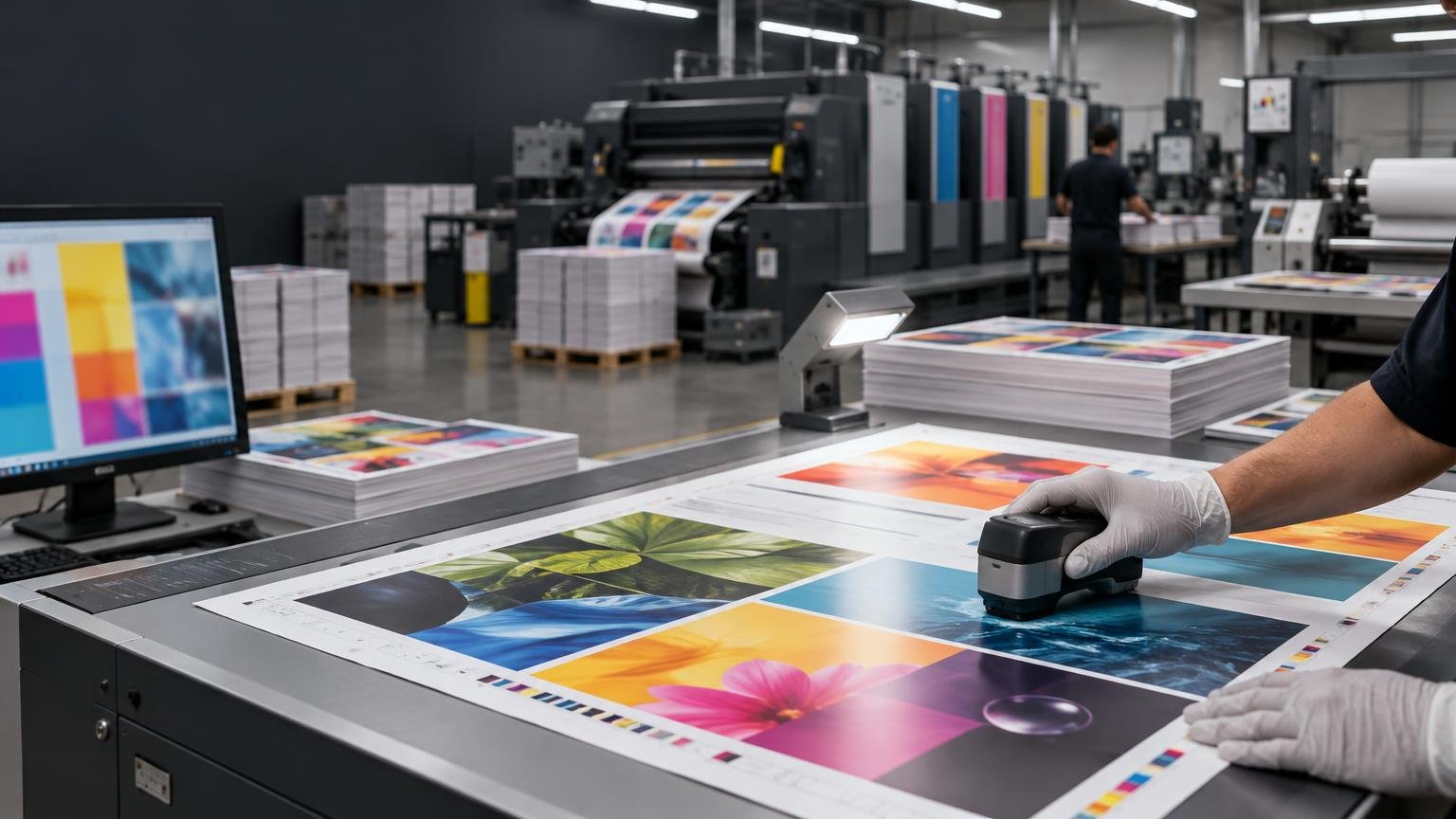
A soft proof simulates output on a calibrated display. It is useful for checking likely gamut compression and overall direction, but it remains affected by the monitor, ambient light, and the difference between emitted and reflected light. A physical proof adds a tangible reference. An approved production sample goes further by representing the actual process and construction more closely.
Use a physical proof or approved production sample when color is commercially consequential, the substrate has a strong color or texture, finishing changes appearance, or a process-color simulation must stand in for a brand spot color. Record exactly what was approved and under what viewing conditions. Approval of an uncalibrated screen image should not be treated as approval of measured printed color.
7. Document the production recipe
For repeat work, archive more than the PDF. Save the approved reference, source and output profiles, substrate specification, device or press condition, RIP preset, ink or toner configuration, spot-color instructions, proof status, measurement approach, finishing construction, and documented exceptions. Keep the production date and relevant equipment state with the job record.
Consider a short-run display printed on coated board. The team first selects the applicable board and output condition, then prepares the artwork with the correct profile policy. It exports the requested PDF/X file, checks separations and ink behavior, and obtains approval against a suitable proof. Production records then capture the board, RIP preset, profile, finishing, and approved reference. A reorder starts from that recipe, followed by verification that the current system still represents the recorded condition.
Designer and print-buyer handoff checklist
- Which printing condition and ICC profile should the file target?
- Should RGB or Lab content remain tagged, or should conversion happen before submission?
- Which PDF/X variant and export preset are required?
- Will named spot colors print separately or be converted to process color?
- What black construction and total ink constraints apply?
- How will overprint, transparency, white ink, varnish, and technical layers be handled?
- Is a soft proof sufficient, or is a physical proof or production sample required?
- What tolerance, reference, and viewing method will govern approval?
- Which production details will be retained for a repeat order?
Printing process affects several of these answers, particularly conversion timing, makeready, spot-color handling, and proof strategy. Review the practical differences between offset and digital printing before locking the workflow. If the project still needs a production route, compare commercial printing options only after the color target, substrate, quantity, finishing, and approval requirements are defined.
Build repeatability around the condition, not the profile alone
A profile is useful only when it describes a sufficiently comparable production condition. Repeatable color comes from aligning file preparation, calibration, characterization, profiles, substrate, output settings, proofing, verification, and records. Define that chain before production, and troubleshooting becomes a controlled comparison against an approved target instead of an argument about which screen looked right.
References
- ISO 12647-1:2013 – Graphic technology — Process control for the production of half-tone colour separations, proof and production prints — Part 1: Parameters and measurement methods
- Guidelines for using print production standards v2 Jan 2024
- ICC Profile Registry
- PDF/X-, PDF/A-, and PDF/E-compliant files (Adobe Acrobat Pro) | Adobe Acrobat
- Previewing output (Adobe Acrobat Pro) | Adobe Acrobat
- Print production tools overview in Acrobat Pro | Adobe Acrobat